

Let's cut through the noise: 90% of Shopify stores are invisible to AI shopping platforms like ChatGPT Shopping because they haven't optimized basic elements like image file names. While your competitors are still uploading files called "IMG_2847.jpg," you're about to learn how to signal exactly what you sell to search engines and AI agents—the platforms that will drive the next decade of eCommerce growth.
This isn't about perfectionism. It's about strategic leverage. Your logo appears on every single page of your Shopify store, which means optimizing this one file creates compound SEO benefits across your entire site. That's the kind of efficiency that builds 7-figure businesses while you sleep.
Why This Matters Right Now: Search engines and AI platforms can't "see" images—they read file names, alt text, and metadata. When you rename your logo from a generic camera file name to a descriptive, keyword-rich file name, you're literally teaching AI shopping agents what your store sells. This is Answer Engine Optimization (AEO) in action.
What You'll Gain From This Guide
For Your Store:
- Improved search engine visibility and ranking potential
- Better image search performance (yes, people shop via Google Images)
- Professional brand consistency that signals credibility
- AI-ready architecture for ChatGPT Shopping recommendations
- Accessibility compliance that expands your customer base
For You as the Owner:
- A scalable system you can replicate across all product images
- One less "hidden revenue leak" in your store's infrastructure
- Confidence that your store meets professional SEO standards
- Foundation for bulk optimization strategies that save hours
- Competitive edge over stores still ignoring image optimization
Step-by-Step: Optimize Your Logo File in Shopify
This process takes 2-3 minutes but delivers SEO value for years. Let's make every file count.
1 Navigate to Content
In your Shopify admin dashboard, click on "Content" in the left sidebar navigation. This is your central hub for all media files, pages, and blog content.

Pro Tip: Bookmark this section—you'll be coming back here regularly as you systematically optimize all your store images. This is where professional stores manage their visual assets, not buried in theme settings.
2 Access Your Files Library
Click "Files" to open your media library. This shows every image, video, and document you've uploaded to Shopify, organized by upload date.

Pro Tip: Take a quick scan of your existing files. If you see a bunch of "IMG_XXXX" or "Screen Shot" file names, you've just identified your next optimization project. Document these for bulk processing later using Matrixify or similar tools.
3 Upload Your Logo File
Click "Upload files" to add your logo. But here's the critical step most people skip: rename the file on your computer BEFORE uploading.

Best naming convention:
- Use descriptive, keyword-rich names
- Include your brand name and what you sell
- Use hyphens (not underscores or spaces) between words
- Keep it under 60 characters
- Use lowercase for consistency
Examples:
- ❌ Bad: logo-final-v3.png
- ❌ Bad: IMG_4892.jpg
- ✅ Good: luxury-organic-skincare-logo.png
- ✅ Good: handmade-leather-goods-brand-logo.png
- ✅ Good: sustainable-childrens-boutique-logo.png
Strategic Insight: Include your primary keyword in the logo file name. If you sell "organic baby products," make that clear in the file name. This signals search intent to both Google and AI shopping agents. Remember: AI can't see your beautiful design—it reads the file name.
4 Select Your Logo File
Click on the file you just uploaded (or the existing logo file you want to optimize) to open the file details panel.

This is where most store owners stop, but you're about to go deeper into SEO optimization that separates amateur sites from professional brands that convert.
5 Optimize Your Alt Text
In the "Alt text" field, add a descriptive, keyword-optimized description of your logo. Alt text serves two critical functions:

- Accessibility: Screen readers use alt text to describe images to visually impaired users
- SEO: Search engines use alt text as additional context about the image
Alt text formula for logos:
[Brand Name] - [What You Sell] - [Location/USP if relevant]
Examples:
- "Veronica Jeans Consulting - eCommerce Business Consultant & Shopify Expert"
- "Luxe Organics - Luxury Organic Skincare Made in California"
- "Coastal Leather Co. - Handmade Leather Goods & Accessories"
Why This Works: When ChatGPT Shopping or Google's AI tries to understand what your store sells, it's reading this alt text. Make it count. Be specific. Include your value proposition. This is free SEO real estate most stores completely waste.
6 Rename the File (If Needed)
Click in the "Name" field and update the file name to match your optimized naming convention. If you renamed the file before uploading, verify it's correct here.

Important: Shopify will automatically handle URL redirects if this logo is already being used across your site, so don't worry about breaking existing links.
Real Talk: I see stores spending thousands on ads while their logo is still named "logo_final_FINAL_v2.png." Fix the fundamentals first. SEO isn't glamorous, but it's the foundation that supports every other marketing dollar you spend.
Why Crop and Transform Your Images? (This Is Where Amateur Stores Fail)
Here's what separates professional brands from DIY stores that never scale: visual consistency. When your logo is 300x150px on the homepage, 450x200px on product pages, and 180x90px in the footer, your store screams "amateur hour" to customers—even if they can't consciously articulate why.
Beyond aesthetics, improperly sized images create three massive problems:
1. Site Speed Catastrophe
If you upload a 3000x2000px logo file and let Shopify resize it with CSS, you're forcing customers to download a massive file just to display a tiny header image. That's like making someone download an entire movie when they only want to watch the trailer. Page speed directly impacts both SEO rankings and conversion rates—Google has confirmed slow sites rank lower, and customers abandon sites that take more than 3 seconds to load.
2. Professional Brand Perception
Inconsistent image sizes create visual chaos. Your brain processes aligned, consistently-sized elements as "professional" and misaligned, randomly-sized elements as "unprofessional." This happens subconsciously in milliseconds. Stores with consistent image dimensions convert better because they signal trustworthiness through visual coherence.
3. Mobile Performance Disaster
Mobile users on 4G connections don't want to wait 8 seconds for your oversized logo to load. They'll bounce before your store even renders. And with mobile commerce representing 70%+ of eCommerce traffic, you're literally losing the majority of potential customers due to lazy image management.
The Professional Standard: Establish site-wide image dimension guidelines and stick to them religiously. For example: Logos = 300x100px, Product images = 1200x1200px, Lifestyle shots = 1600x900px, Icons = 100x100px. When every image follows your dimension system, your entire store elevates to professional-level design quality—even if you're not a designer.
7 Open Crop and Transform Tools
Click "Crop and transform" to access Shopify's built-in image editing tools. This is where you'll resize, crop, and optimize your image dimensions for professional consistency and optimal performance.
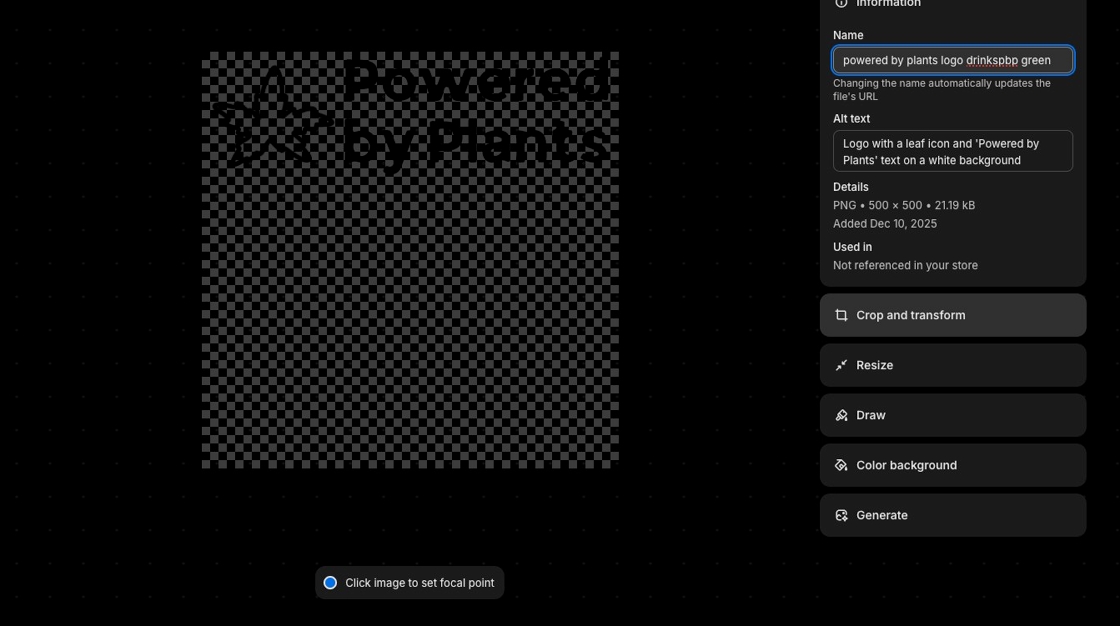
Most store owners don't realize Shopify has free cropping and resizing tools built in. No need for Photoshop or external software for standard adjustments. This saves you time AND money—professional image editing without the learning curve or monthly subscription.
Strategic Workflow: Crop and resize in the same step. This is your opportunity to reduce file size dramatically while ensuring visual consistency. A properly cropped and resized logo might go from 800KB to 80KB—that's a 90% reduction in file size with zero visible quality loss. Multiply that across 100+ images, and you've just cut your site's total page weight by megabytes, which translates directly to faster load times and better SEO.
8 Access Cropping Interface
Click "Crop and transform" again to activate the cropping overlay on your image.

This opens the visual editing interface where you can adjust dimensions, orientation, cropping boundaries, and apply transformations. You'll see:
- Crop handles at corners and edges for precise framing
- Dimension controls to set exact pixel dimensions
- Aspect ratio lock to maintain proportions
- Rotation tools if your image needs alignment correction
Before You Crop: Know your target dimensions. For logos, I recommend 300-400px width maximum for headers. Check your theme's documentation or inspect your current logo's display size. Don't guess—measure. Then crop to exactly those dimensions (or slightly larger for Retina display support). This precision is what separates stores that convert from stores that look "off" to customers.
9 Resize, Crop, and Apply Your Changes
Now here's where you systematically optimize for both aesthetics and performance:
Step 1: Set Your Target Dimensions
Use the dimension controls to resize your image to your site-wide standard. For logos, typically 300-400px width. This immediately reduces file size if you've uploaded an oversized original.
Step 2: Crop for Visual Impact
Grab the crop lines (the corner and edge handles) and move them to frame your logo exactly how you want it displayed. Focus on:
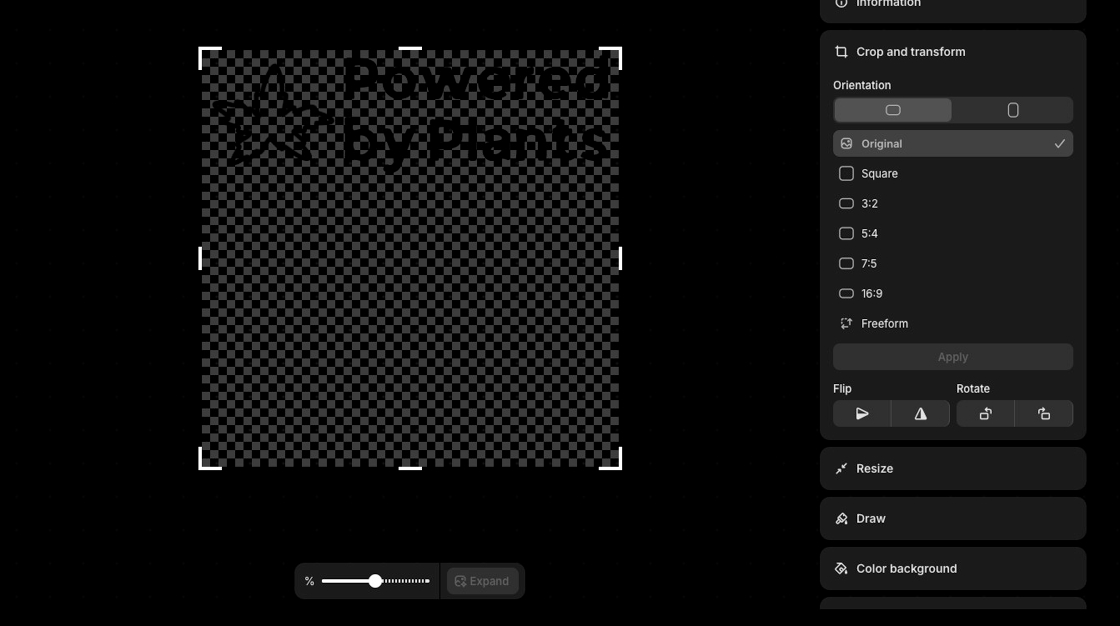
- Removing excess whitespace that makes your logo appear smaller and wastes valuable header real estate
- Centering your brand mark for visual balance and professional alignment
- Maintaining aspect ratio to prevent distortion (unless you're intentionally adjusting proportions)
- Considering mobile display where logos appear smaller—if your logo has fine details or small text, they should remain legible when cropped
- Ensuring clickability on mobile—logos should be large enough for touch interaction (minimum 44x44px touch target)
Step 3: Verify File Size Reduction
After resizing and cropping, your file should be significantly smaller than the original. A properly optimized logo should be:
- Under 200KB (ideally 50-100KB)
- Exactly the dimensions your theme will display (no browser-side resizing)
- Clear and sharp at 2x zoom (for Retina/high-DPI displays)
Critical step: Don't forget to click "Apply" to save your changes. I've seen clients spend 10 minutes cropping perfectly, then lose all their work by forgetting this final click. Shopify won't save your changes until you confirm with Apply.
Design Insight: Your logo should be clearly visible at thumbnail size. If you can't read your brand name when the image is 100x100 pixels, it needs simplification or better cropping. Mobile-first design isn't optional anymore—it's how the majority of your customers will see your brand.
Performance Reality Check: Every 100KB of image weight adds approximately 1 second of load time on a 3G connection. If your logo is 800KB instead of 80KB, you've just cost yourself 7 seconds of load time—on EVERY page of your store. Google starts penalizing sites that take longer than 3 seconds to load. Amazon found that every 100ms of latency costs them 1% in sales. This isn't theoretical—it's revenue directly impacting your bottom line.
Establishing Site-Wide Image Standards (The Professional Advantage)
Now that you've optimized your logo, here's how to create visual consistency that makes your store look like it cost $50K to build, even if you're bootstrapping on a budget:
Create Your Image Dimension Guide:
- Logo: 300-400px width (or whatever your theme displays optimally)
- Product images: 1200x1200px or 2000x2000px (square ratio for consistency)
- Lifestyle/banner images: 1600x900px or 1920x1080px (16:9 ratio)
- Collection thumbnails: 600x600px (matches product ratio at smaller size)
- Blog featured images: 1200x630px (optimized for social sharing)
- Icons/badges: 100x100px or 200x200px for Retina support
Document these standards and follow them religiously. When you hire a photographer, give them these specs. When you create graphics in Canva, use these exact dimensions. When you upload product photos, resize them to match before uploading.
Why This Matters Beyond Aesthetics: Consistent image dimensions mean predictable file sizes, which means predictable page load times, which means consistent site performance. Professional stores don't have wildly variable load speeds from page to page—they've systematized their image management. This is the infrastructure that supports scaling to thousands of products without performance degradation.
File Size Optimization: The Revenue Impact Most Stores Miss
Let's talk about the real cost of ignoring image file sizes, because this is where I see stores literally hemorrhaging revenue:
Scenario 1: The Heavy Homepage
Store A has a 3.5MB homepage (oversized images). Store B has a 500KB homepage (optimized images). On a 4G connection, Store A takes 8 seconds to load. Store B takes 1.2 seconds to load. The conversion rate difference? Store B converts at 3.2%, Store A at 1.1%. Same products, same prices—Store B makes 3x the revenue simply by loading faster.
Scenario 2: The Mobile Disaster
Your logo is 2000x800px at 1.2MB. A customer on their phone in a coffee shop with spotty WiFi waits... and waits... and your header finally loads after 12 seconds. Except they already bounced after 5 seconds because humans are impatient and your competitor's site loaded instantly.
The Solution: Resize images to their display dimensions before uploading. If your theme displays logos at 300px width, upload a 300px (or 600px for Retina) image—not a 3000px image that the browser has to resize on the fly. This single practice reduces file sizes by 80-95% with zero visible quality loss.
Advanced Optimization Stack: After you've resized and cropped in Shopify, use compression tools for additional file size reduction:
- TinyIMG app: Automatically compresses images by 40-70% without visible quality loss
- WebP format: Offers 30% smaller file sizes than JPEG/PNG (check theme compatibility first)
- Lazy loading: Only loads images as users scroll (most modern themes have this built in)
- CDN delivery: Shopify's CDN automatically serves images from the server closest to your customer
Combined, these strategies can reduce your total site weight by 60-80%, which translates to 2-5 second faster load times, which translates to 10-30% higher conversion rates. This is how you fund a 7-figure business with systematized infrastructure instead of throwing money at more ads.
Why This Simple Process Delivers Outsized Results
Here's what most Shopify consultants won't tell you: the difference between a $50K store and a $500K store often comes down to doing the fundamentals exceptionally well, not chasing the latest marketing hack.
When you optimize your logo file—and then systematically apply this same process to product images, collection banners, and homepage visuals—you're building the infrastructure that supports sustainable growth. This is the unsexy work that compounds over time.
The Compound Effect: Your optimized logo appears on every page. That's potentially thousands of SEO signals across your site from ONE optimized file. Multiply that by 100+ product images, and you start to understand why properly optimized stores rank higher, get recommended by AI agents, and convert better than competitors with better products but worse infrastructure.
How Professional Stores Scale This Process
Once you've mastered logo optimization, here's how to systematically upgrade your entire visual library without spending weeks on manual edits:
- Audit your current files: Export your file list and identify everything with generic naming (IMG_, Screen Shot, etc.)
- Create naming conventions: Document your standard format for products, collections, lifestyle shots, and detail images
- Use bulk tools strategically: Apps like Matrixify let you update hundreds of images via CSV upload
- Optimize at upload: Train your team (or yourself) to rename files BEFORE uploading—prevention beats correction
- Implement image compression: Use apps like TinyIMG to automatically optimize file sizes without quality loss
Client Success Story: One of my eCommerce clients had 800+ product images with camera file names. We spent two hours creating a naming convention, then used Matrixify to bulk rename everything in one afternoon. Three months later, their organic traffic from image search increased 127%. That's the power of systematic optimization.
Common Mistakes to Avoid
1. Using underscores instead of hyphens
Search engines read hyphens as spaces between words, but treat underscores as a single word. "luxury_organic_skincare" becomes one unreadable term to Google.
2. Keyword stuffing file names
"best-organic-skincare-luxury-anti-aging-cream-natural-beauty-products-2024.jpg" looks like spam. Be descriptive, not desperate.
3. Ignoring file size optimization
A 5MB logo file will slow your site speed, which kills both SEO and conversion rates. Compress images to under 200KB for logos, under 500KB for product images.
4. Forgetting mobile preview
Your logo might look perfect on desktop but illegible on mobile. Test how it displays at small sizes before finalizing.
5. Using special characters or spaces
Stick to lowercase letters, numbers, and hyphens. URLs don't like anything else.
The Bigger Picture: AI-Ready Store Architecture
ChatGPT Shopping launched in September 2025, and it's already changing how people discover and buy products. AI shopping agents don't browse your site like humans—they read structured data, image metadata, and schema markup to understand what you sell and who should buy it.
Proper image optimization isn't just about SEO anymore. It's about being discoverable in a world where AI agents make product recommendations based on data they can actually process. Stores with optimized images, proper schema, and clean metadata will dominate AI-driven commerce. Stores still using "IMG_4739.jpg" won't even show up in the results.
Your Next Steps:
- Optimize your logo file using this guide (2-3 minutes)
- Document your naming convention for future uploads
- Audit your top 10 product images and optimize those next
- Schedule 30 minutes weekly for systematic image optimization
- Consider bulk tools once you've optimized 20+ images manually
This is how 7-figure stores are built—one systematized process at a time. Your business should fund your life, not consume it. Start with the fundamentals that work while you sleep.
Frequently Asked Questions
Absolutely. Search engines and AI platforms like ChatGPT Shopping can't see images—they read file names and alt text. A file named "IMG_2847.jpg" tells Google nothing. A file named "luxury-organic-skincare-logo.jpg" signals exactly what you sell.
This is especially critical now that 90% of Shopify stores are invisible to AI shopping platforms. Proper file naming is one of the fastest SEO wins you can implement today. It's not the only factor that matters, but it's a foundational element that supports every other SEO strategy you implement.
For a logo file, about 2-3 minutes. But here's the real question: how much revenue are you leaving on the table by NOT doing this?
If you have hundreds of product images, use Shopify's bulk editing tools or apps like Matrixify to handle it systematically. The initial investment of time pays off in improved search visibility and professional brand perception for years to come. I've had clients see 100%+ increases in image search traffic within 90 days of systematic optimization.
File name is what search engines index before your image even loads—it's part of your URL structure. Alt text serves two purposes: accessibility for visually impaired users and additional context for search engines.
Both matter, but they serve different functions. File name = SEO foundation. Alt text = SEO enhancement + accessibility compliance. Think of file name as the title of a book, and alt text as the subtitle with more detail. Optimize both, always. This is non-negotiable for professional stores.
Start with your logo because it appears on every page of your site—maximum SEO leverage. Then systematically optimize product images, collection banners, and homepage visuals based on traffic and conversion impact.
For stores with 100+ products, this is where bulk optimization tools become essential. Don't let perfect be the enemy of done—optimize strategically. Prioritize your best-selling products first, then work backward. I've seen stores get 80% of the benefit from optimizing just 20% of their images (the ones that drive the most traffic).
Use descriptive, keyword-rich names with hyphens (not underscores or spaces). Format: product-name-feature-variation.jpg
Examples: "organic-lavender-soap-bar-main.jpg" or "handmade-leather-wallet-brown-detail.jpg". Keep it under 60 characters, use lowercase, and include your primary keyword. This isn't just for Google—it's how AI shopping agents understand and recommend your products. When ChatGPT Shopping is deciding whether to recommend your product or a competitor's, this metadata makes the difference.
Yes, absolutely. Shopify's Files section lets you edit file names and alt text anytime. However, if the image is already being used across your site, renaming it won't break existing links—Shopify manages those URLs automatically.
The best practice? Optimize files BEFORE uploading when possible, but never let timing stop you from making improvements. Better late than never when it comes to SEO. I've had clients optimize stores that were live for 3+ years and still see significant ranking improvements within weeks.
AI shopping agents rely heavily on structured data, file names, and alt text to understand your products since they can't visually process images like humans do. When ChatGPT Shopping recommends products, it's reading your image metadata, not looking at the actual photo.
Stores with optimized image files and proper schema markup get recommended by AI agents. Stores with "IMG_4739.jpg" don't. It's that simple—and that critical for 2025 and beyond. We're moving from Search Engine Optimization (SEO) to Answer Engine Optimization (AEO). The fundamentals are the same: clean, descriptive, structured data that machines can process.
PNG is ideal for logos with transparency (important for headers and overlays). Use JPEG for logos with solid backgrounds or photographs. WebP offers the best compression but check theme compatibility first.
Regardless of format, keep file sizes under 200KB for logos. Large files slow page speed, which directly impacts both SEO rankings and conversion rates. Google has confirmed page speed is a ranking factor, and customers abandon slow sites. Optimize for speed without sacrificing quality.
No. Image optimization is something any store owner can (and should) do themselves. This guide shows you exactly how to do it through Shopify's admin interface—no coding required.
However, if you have 500+ images and want to optimize systematically using bulk tools, a consultant or VA familiar with Matrixify can save you significant time. The skills you learn optimizing manually will help you manage the process effectively, even if you delegate the execution. Knowledge is power, especially when it comes to quality control.
