

Transferring Shopify store ownership isn't just clicking a button—it's a critical process that requires precision to avoid locking yourself out or creating billing nightmares. Whether you're bringing on a business partner, selling your store, or restructuring your company, I'm walking you through the exact steps that protect both parties and keep your store running smoothly.
Here's the reality most consultants won't tell you: you can't simply "add" a new owner like you would a staff member. Shopify requires a complete ownership transfer, which means the current owner must relinquish control to someone who either already has access or accepts a formal invitation. Miss a step, and you could lock everyone out until the new owner accepts—killing your revenue stream in the process.
Critical Warning: Once you initiate the ownership transfer, no user can access the store until the new owner accepts the invitation and completes the process. Coordinate timing carefully, especially if you're mid-campaign or during high-traffic periods.
Understanding Shopify Store Ownership vs. Staff Access
Before we dive into the how-to, let's clarify what ownership actually means. The store owner has exclusive rights that no staff member—regardless of permissions—can access:
- Transfer ownership to another user
- Close or sell the store entirely
- Ultimate billing responsibility for subscriptions and charges
- Legal accountability for store operations and compliance
Staff members can have "Manage everything" permissions that look identical to owner access for daily operations, but they cannot perform these four ownership-specific actions. This distinction matters when you're scaling or restructuring—you're not just granting access, you're transferring legal and financial control.
Preparing for Ownership Transfer: The Pre-Flight Checklist
Smart entrepreneurs don't jump into ownership transfers blind. Here's what you need to verify before touching that "Change ownership" button:
1Audit Current Permissions: Go to Settings > Users and verify who has access and at what level. Document this—you'll need to rebuild access after the transfer.
2Update All Roles: Navigate to Settings > Users > Roles. The incoming owner's role must have "Select all permissions" checked, plus "Manage and install apps and channels" and "Approve app charges." This prevents permission conflicts that'll slow your operations.
3Communicate the Timeline: The new owner receives an email invitation that must be accepted before anyone regains access. If they're in a different timezone or away from email, your store is effectively frozen. Plan accordingly.
4Document Billing Details: Know whether this is a new store requiring a fresh subscription or an existing store where billing transfers immediately. The new owner needs their payment method ready.
Method 1: Transferring Ownership to a New User (First-Time Access)
When your new owner has never accessed the store before, you must create their account first. Shopify won't let you transfer to an email address that isn't already in the system as a staff member.
Step 1: Invite as Staff Member
Navigate to Settings > Users and Permissions from your Shopify dashboard, then click Add staff.
Enter the new owner's email address and grant them full permissions by selecting "Manage everything" or a custom role with all permissions enabled.
Send the invitation. The recipient must accept this email and complete the account setup before you can proceed with the ownership transfer.
Pro Tip: Have the new owner accept the invitation immediately while you're both online. This eliminates the waiting period and lets you complete the transfer in one session, minimizing access disruption.
Step 2: Verify Account Activation
After the new user accepts the invitation and logs in at least once, they appear in your Users list with "Active" status. Confirm this before proceeding—you cannot transfer to inactive accounts.
Step 3: Configure Role Permissions
Go to Settings > Users > Roles. Select the role assigned to your new owner.
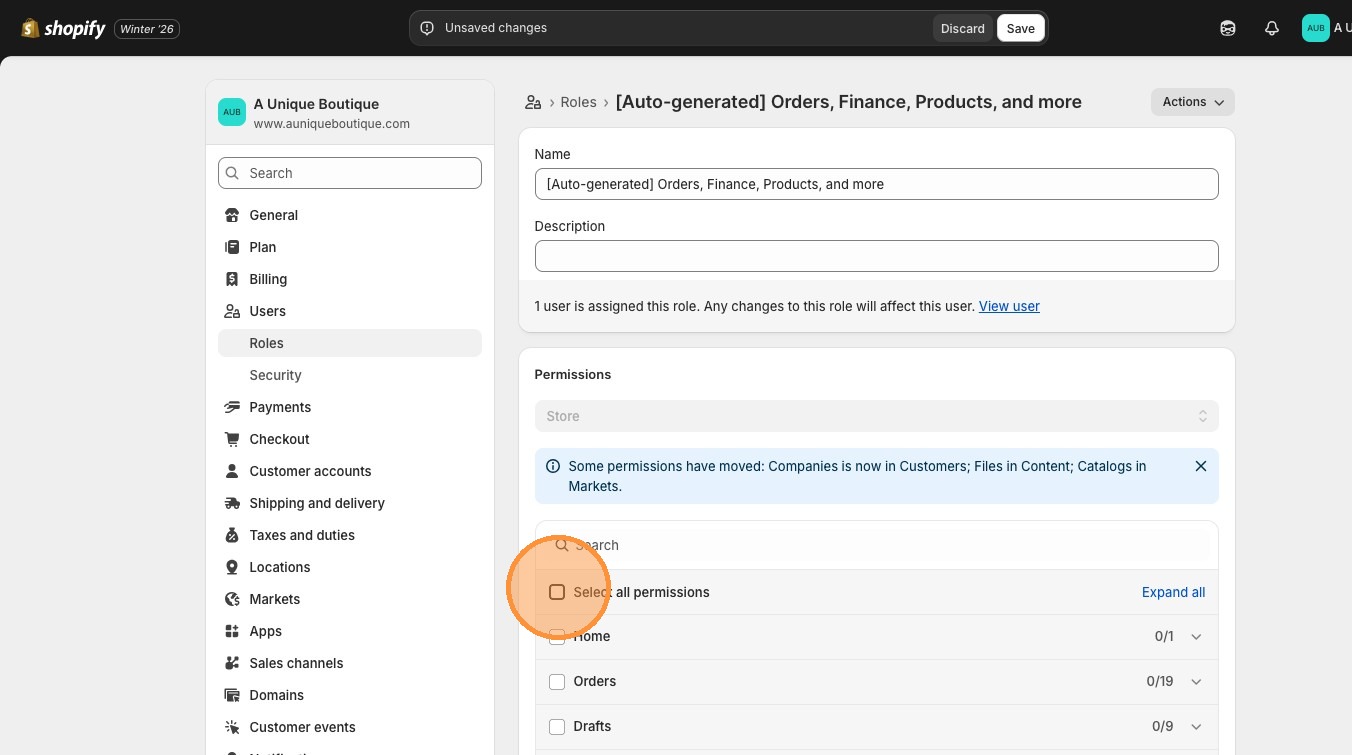
Check "Select all permissions" to grant comprehensive access across all store functions.
Scroll down to the Apps section and enable both:
- "Manage and install apps and channels"
- "Approve app charges"
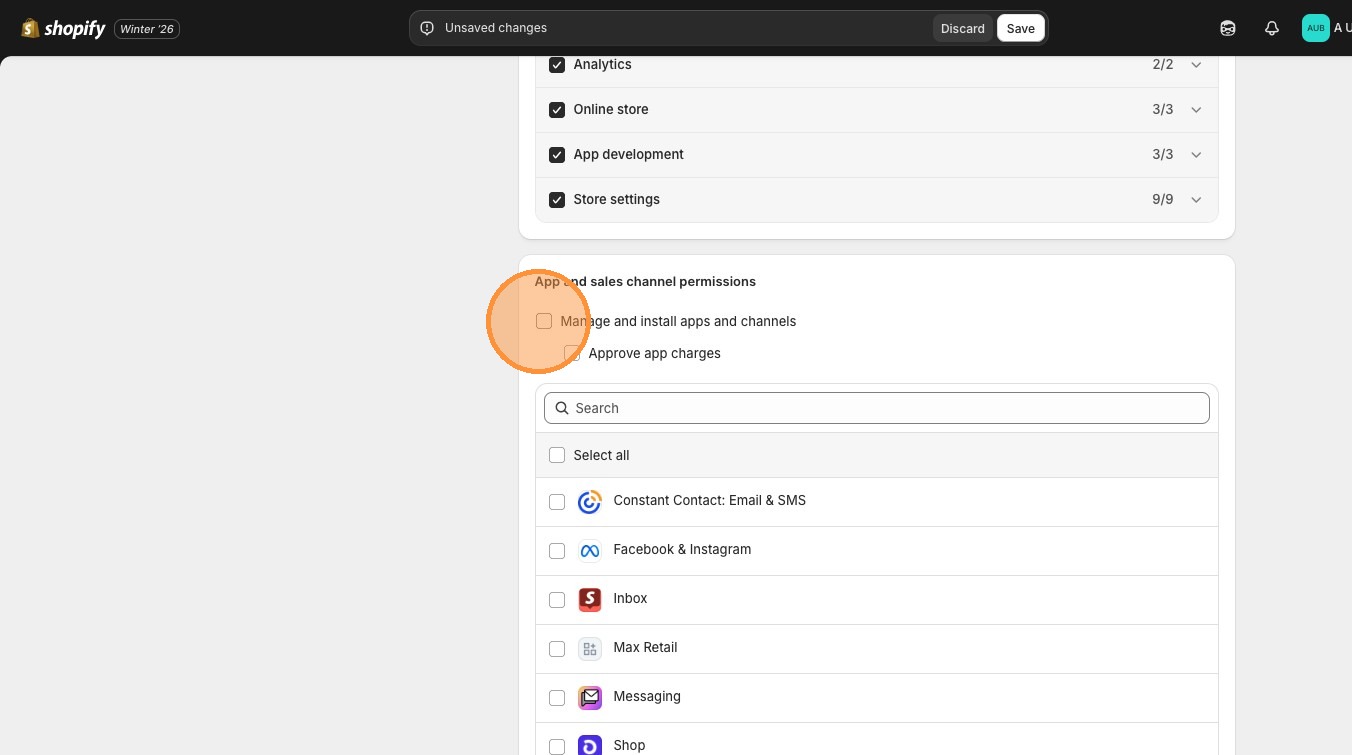
Without these, your new owner can't manage app subscriptions or installations—a critical oversight that'll create friction immediately.
Step 4: Initiate Ownership Transfer
Return to Settings > Users. Find your name (the current owner) in the list.
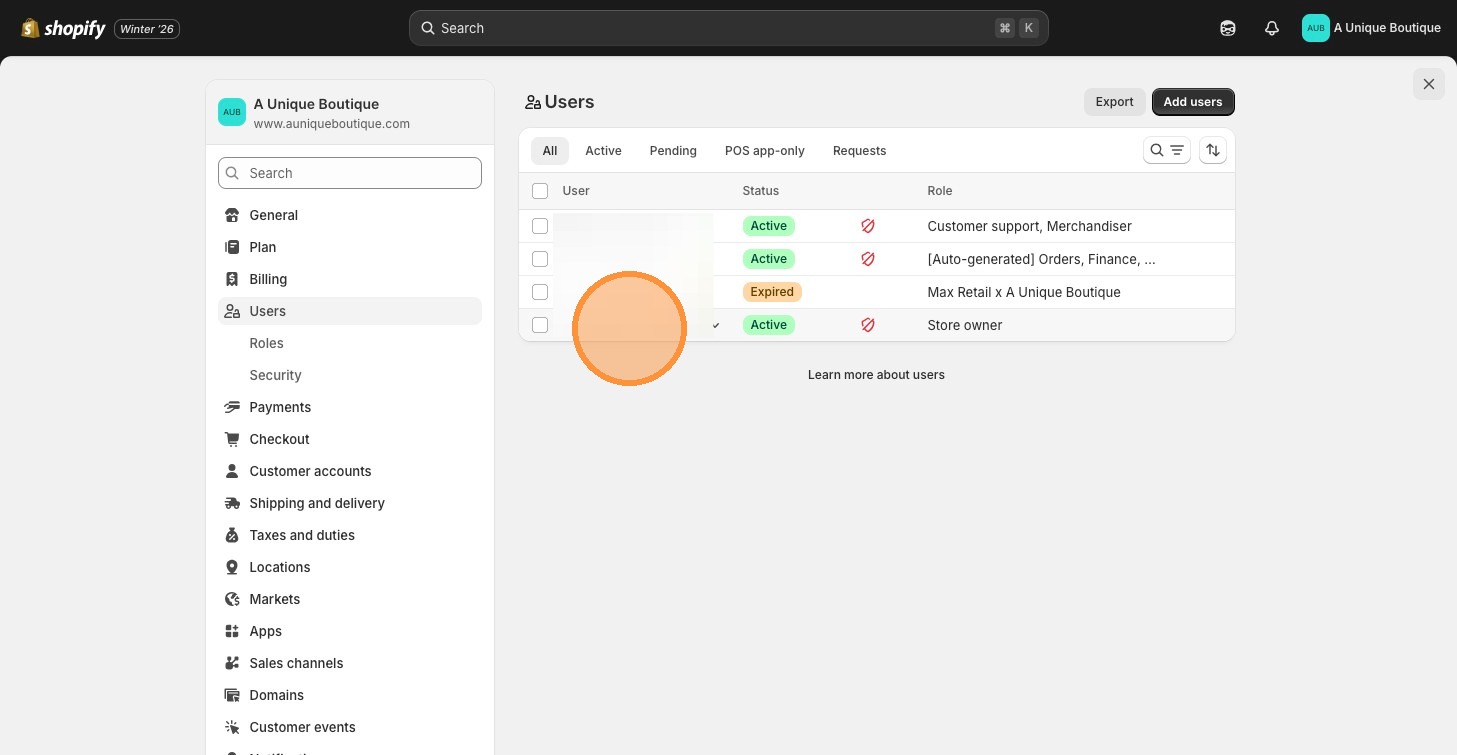
Click the three dots next to your "Store owner" role in the Roles column.
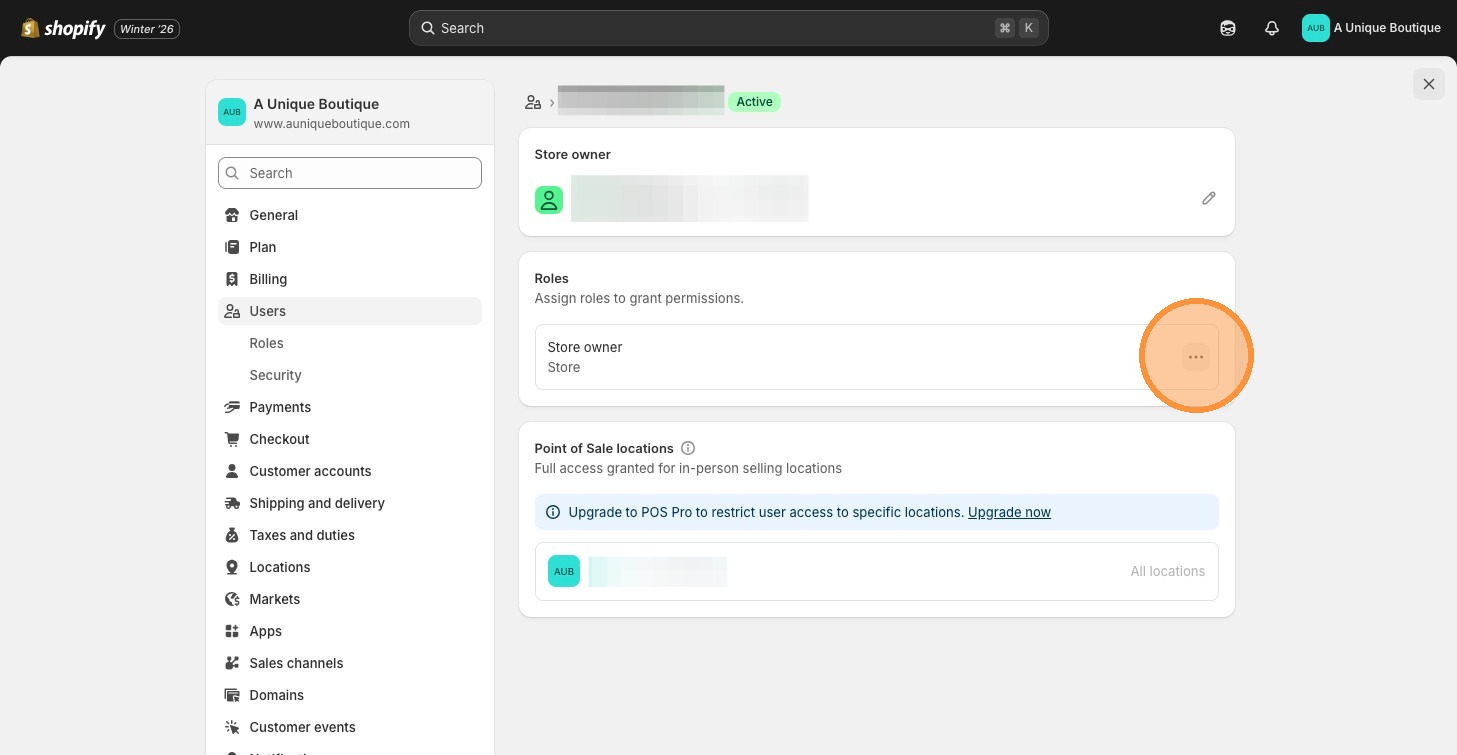
Select "View stores" from the dropdown menu.
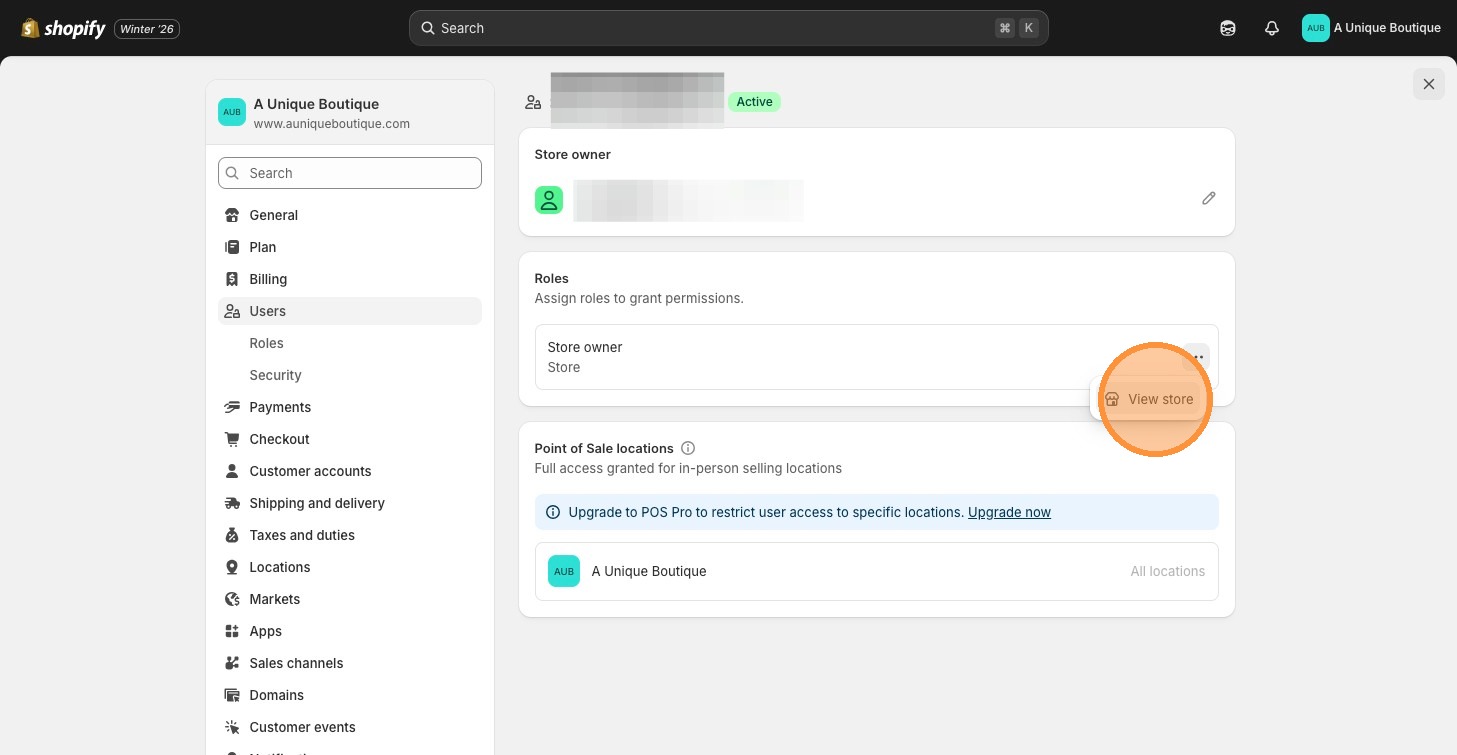
Choose the specific store you're transferring (if you own multiple), then click "Change ownership".
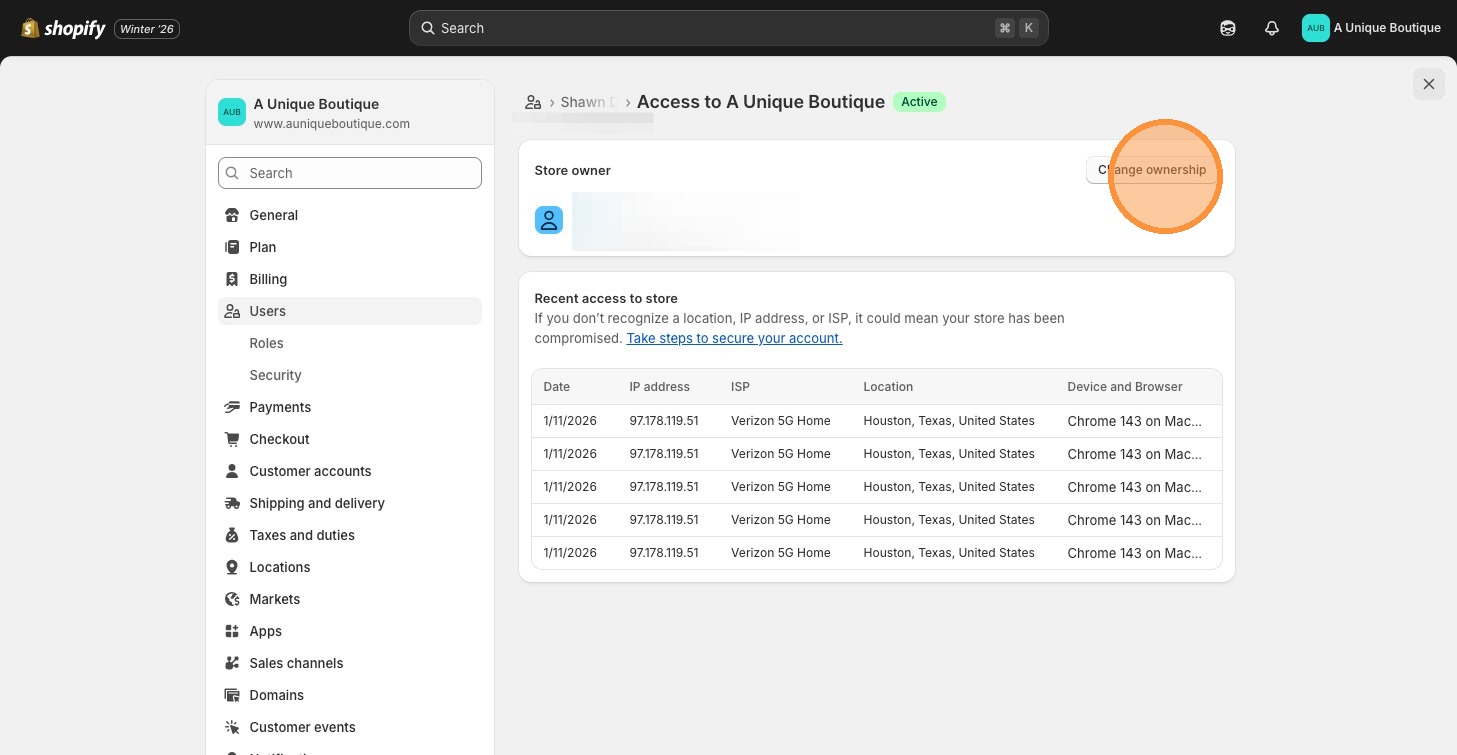
Step 5: Complete the Transfer
In the ownership transfer popup, enter the new owner's email address—the same one you invited as staff.
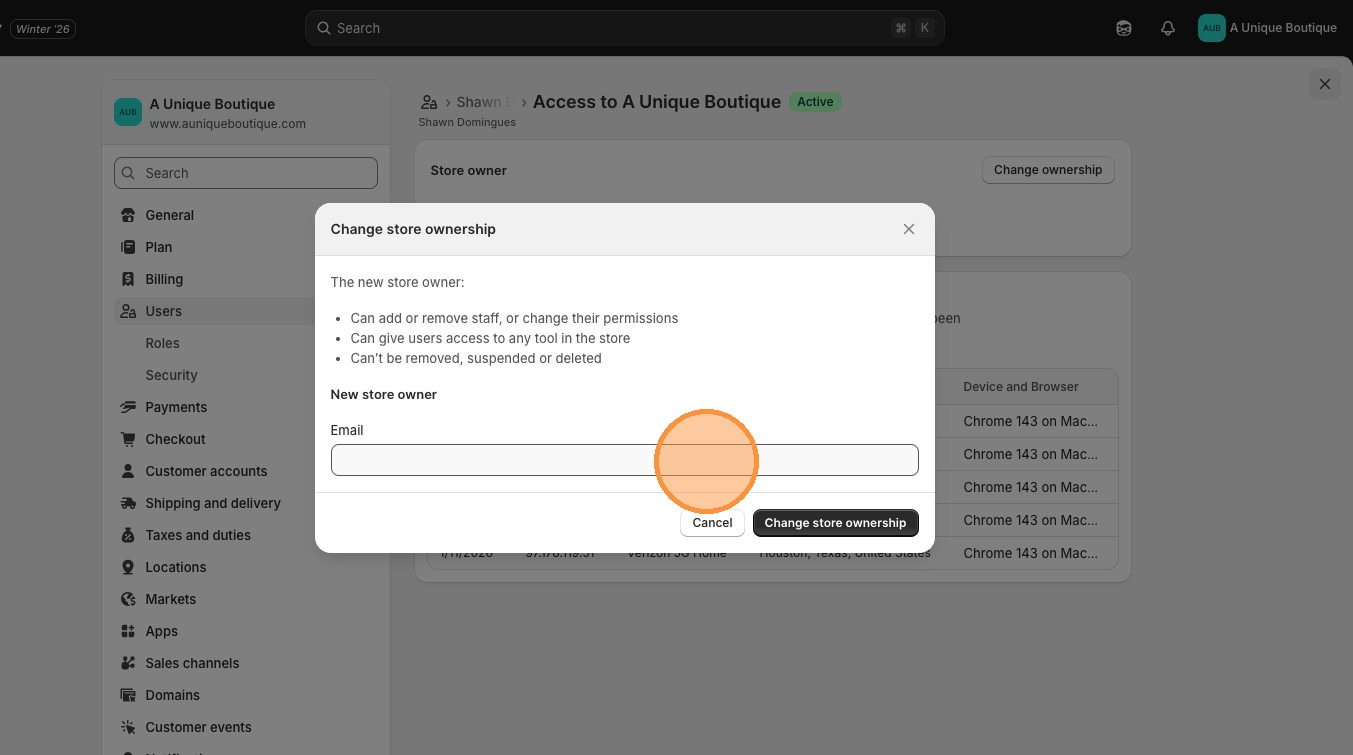
Shopify will prompt you to re-enter your password for security verification. Complete this and click "Change store ownership".
The new owner receives an email from Shopify with a confirmation button. Until they click that button and complete the process, no one can access the store—not you, not staff, not the new owner.
New Store Alert: If this is a brand new store without an active subscription, the new owner must start a Shopify subscription plan immediately upon accepting ownership to make the store live. Have them prepared with payment details before you initiate the transfer.
Method 2: Transferring Ownership to an Existing Staff Member
When you're promoting someone who already has staff access—like a business partner or team member who's been managing operations—the process is faster but still requires precision.
Step 1: Verify Current Permissions
Go to Settings > Users and locate the staff member who'll become the new owner. Click their name to view their current permission level.
Ensure they have full administrative permissions or update their role to include all necessary access following the same role configuration process outlined in Method 1, Step 3.
Step 2: Initiate Transfer from Your Account
Navigate to Settings > Users, find your name (current owner), and click the three dots next to "Store owner."
Select "View stores", choose the store, and click "Change ownership".
Step 3: Select from Existing Users
In the ownership transfer dialog, you'll see a list of current staff members. Select the person you're promoting to owner.
Since they're already in the system, Shopify pre-fills their information. Verify the details are correct—this is your last checkpoint before the transfer becomes irreversible.
Step 4: Authenticate and Confirm
Enter your password to re-authenticate your identity. This security measure prevents unauthorized ownership transfers.
Click "Change store ownership" to finalize. The selected staff member receives the same email notification and must accept to complete the process.
Business Partnership Tip: For 50/50 partnerships or multi-owner situations, designate one person as the legal owner and grant the other full admin permissions. Document this arrangement in your operating agreement to prevent disputes. Remember, Shopify's system recognizes only one owner, but your business structure can distribute authority differently.
Post-Transfer Actions: Securing Your New Structure
The transfer confirmation email is not the finish line. Here's what the new owner must do immediately to secure operations:
1Update Payment Method: Add a valid payment method under Settings > Billing to ensure uninterrupted service. This is critical for both subscription charges and app fees.
2Review User Access: The previous owner becomes a regular staff member (if they remain on the account). Verify their permissions match the agreed-upon role, or remove them entirely if the transfer represents a complete sale.
3Audit App Connections: Some apps tie to the owner's email for notifications and billing. Update these connections under Settings > Apps and sales channels to prevent communication gaps.
4Verify Domain Settings: If the store uses a custom domain, confirm DNS settings and domain ownership haven't been disrupted. This is rare but worth checking, especially for domains registered through third-party providers.
5Document the Change: Update any business documents, contracts, or agreements that reference the store owner. This includes tax documents, partnership agreements, and vendor contracts.
Common Ownership Transfer Mistakes (And How to Avoid Them)
I've seen these errors cost entrepreneurs thousands in lost revenue and weeks of support tickets. Here's what to avoid:
Mistake #1: Transferring During Peak Sales Periods
The acceptance window creates a brief lockout period. Never transfer ownership during Black Friday, product launches, or high-traffic campaigns. Schedule transfers during your slowest operational hours—typically Sunday evenings or early Monday mornings.
Mistake #2: Incomplete Role Permissions
If you skip the "Manage and install apps" or "Approve app charges" permissions, the new owner can't manage subscriptions or add tools. This creates immediate friction and support requests. Always configure full permissions before initiating transfer.
Mistake #3: Not Coordinating Acceptance Timing
Sending the transfer request and hoping the new owner checks email eventually? You're gambling with revenue. Coordinate via phone or video call so they can accept immediately while you're both available to troubleshoot any issues.
Mistake #4: Assuming Automatic Billing Transfer
The new owner must manually add their payment method. Shopify won't transfer your credit card to their account. If they delay, you could face service interruptions when the next billing cycle hits.
Mistake #5: Forgetting to Re-Add Yourself as Staff
If you're maintaining involvement post-transfer (common in partnerships or consulting arrangements), ensure the new owner re-adds you as a staff member with appropriate permissions immediately after accepting ownership. Otherwise, you're locked out permanently.
Frequently Asked Questions About Shopify Ownership Transfer
The Bottom Line on Ownership Transfer
Changing Shopify store ownership isn't complicated, but it requires methodical execution and coordination. The entrepreneurs who nail this process are the ones who treat it like the legal and financial transfer it is, not just an administrative checkbox.
You now have the exact playbook I use when restructuring client stores or bringing on partners. Follow these steps precisely, coordinate timing with all parties, and verify permissions at every stage. Your store's continuity depends on it.
Running a Shopify business means mastering these operational fundamentals so you can focus on strategy, not scrambling to regain access because you skipped a permission checkbox. Build systems that work while you sleep, starting with ownership structures that scale as your business grows.
