

This guide provides a step-by-step process for using the Matrixify Export Import App to efficiently import products into your Shopify store. It emphasizes the importance of performing a "Dry Run" to identify potential issues before the actual import, ensuring a smoother experience. By following these instructions, users can minimize errors and understand any problems that arise during the import process, making it an essential resource for Shopify store owners looking to streamline product management.
1. In the Matrixify App - Click "Add file"

2. Click this icon -dropdown to 'Select Entity' - what type are you uploading - Products, Collections etc.

3. Click "Products"

4. Click this icon 'Options'

5. Click the "Dry Run - process the file without importing (will not catch all issues because we will not send the data to Shopify API; actual import might still have errors)" field.

6. Click "Analyze"

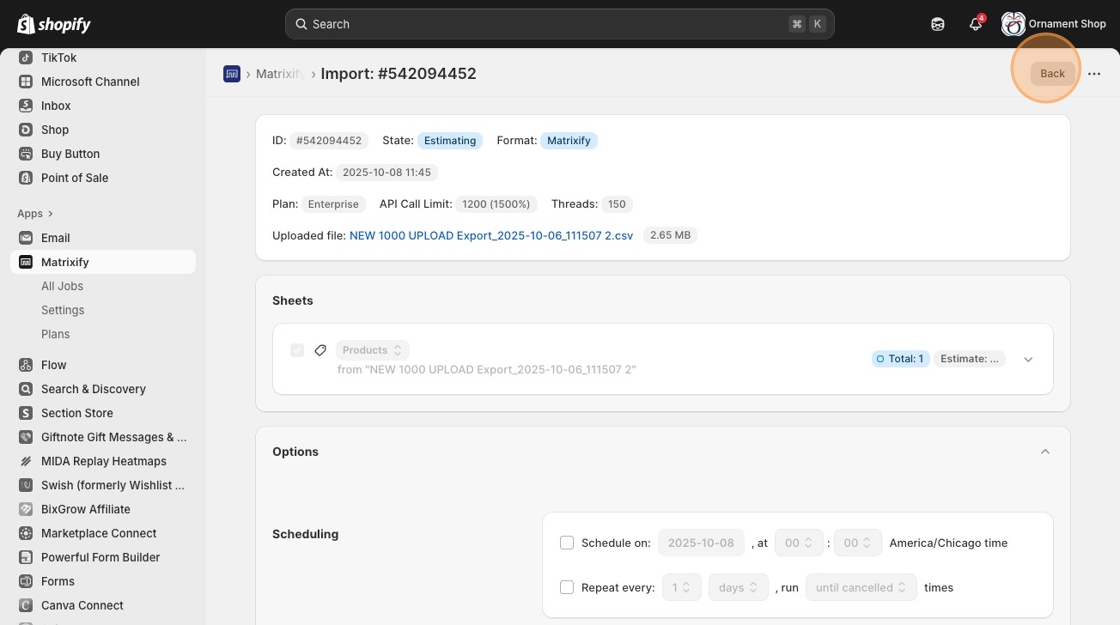
7. Click "Back"
8. Once the 'Dry Run' indicated no major problems - Click "Ready to Import"

9. Click this icon 'Options" and uncheck 'Dry Run'

10. Uncheck the "Dry Run - process the file without importing (will not catch all issues because we will not send the data to Shopify API; actual import might still have errors)" field.

11. Click "Import"

12. Once you have imported your products you will know if there are any problems. Click "Import_Result_2025-10-08_115125.zip" and each failed import will have the reasons why the product did not upload.

Made with Scribe
